Help & Support
Get the most out of Google Meet Create
1
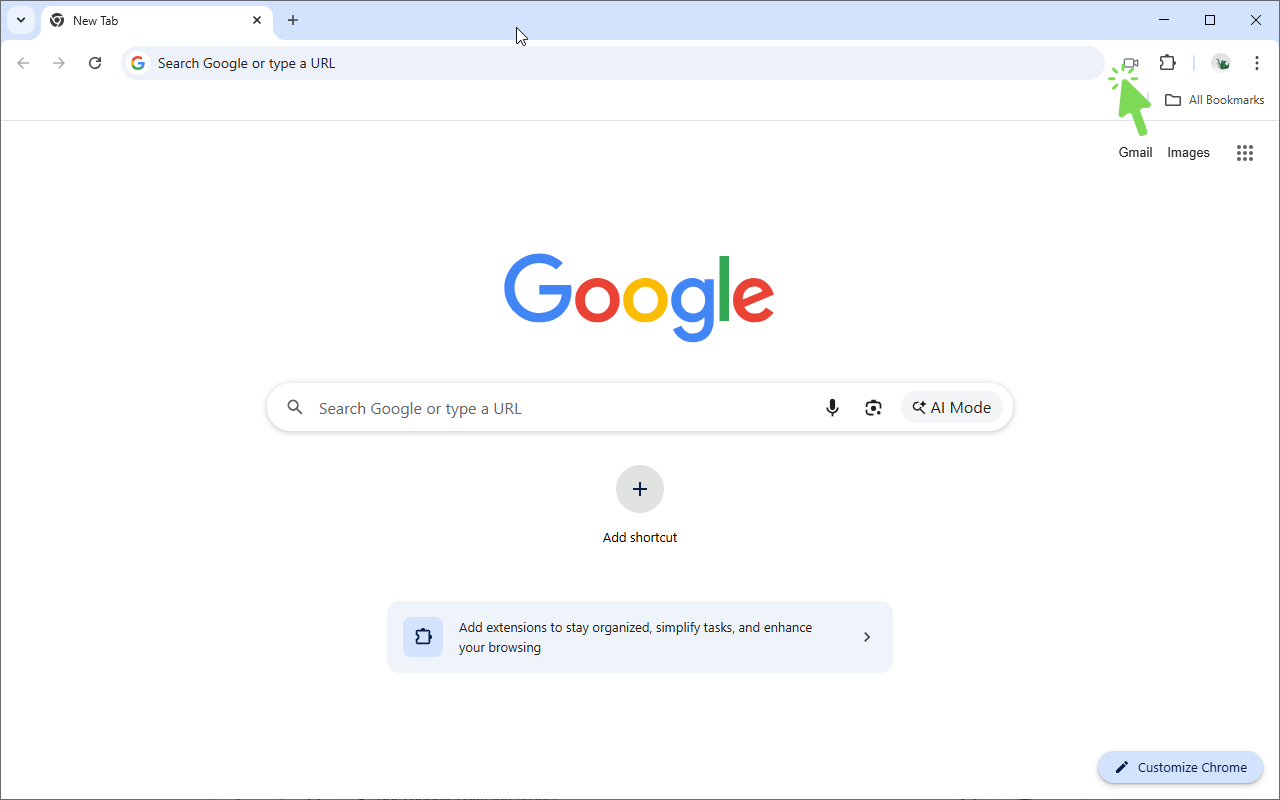
Create instant meetings
Click the Google Meet Create extension icon in your toolbar or press
Ctrl+Shift+Y to instantly create a new Google Meet call. The meeting link is automatically copied to your clipboard.
2
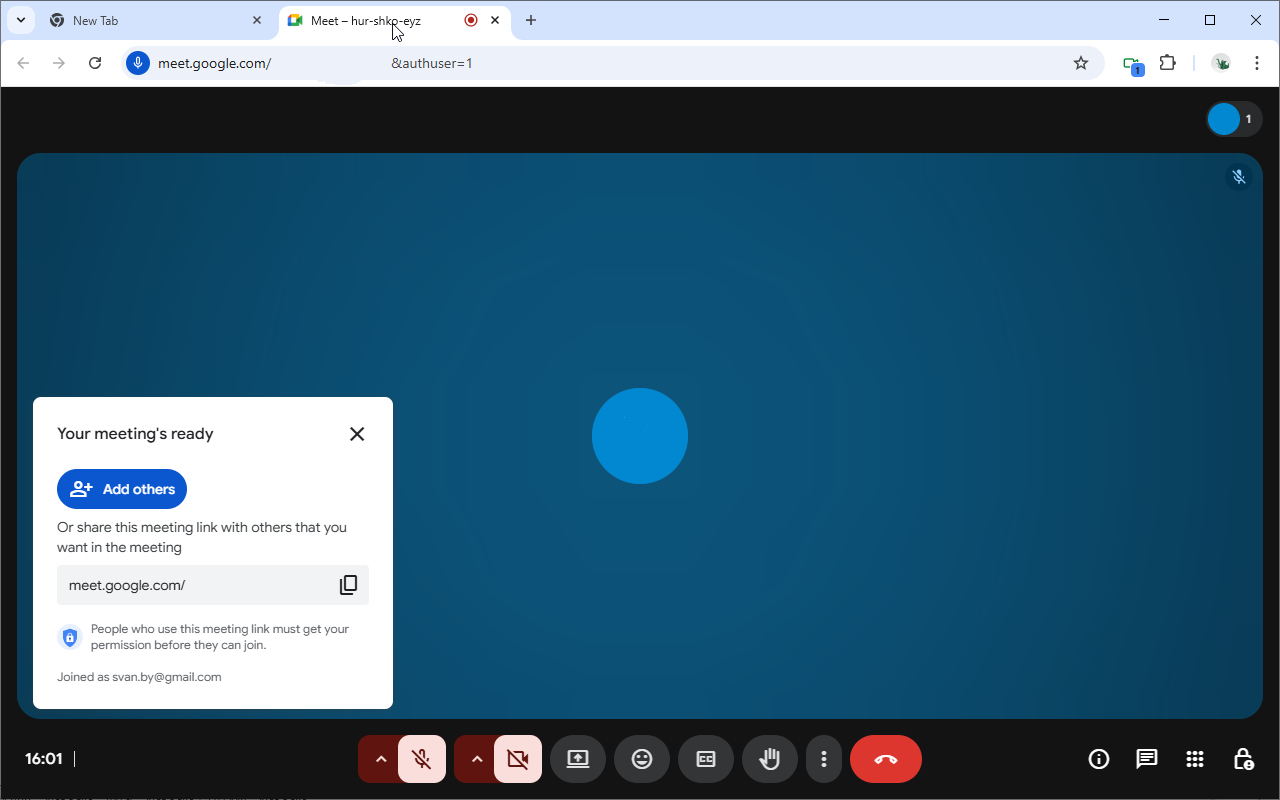
Meeting created successfully
After creating a meeting, a new Google Meet tab will open with your meeting ready. You can share the meeting link with others or join immediately.
3
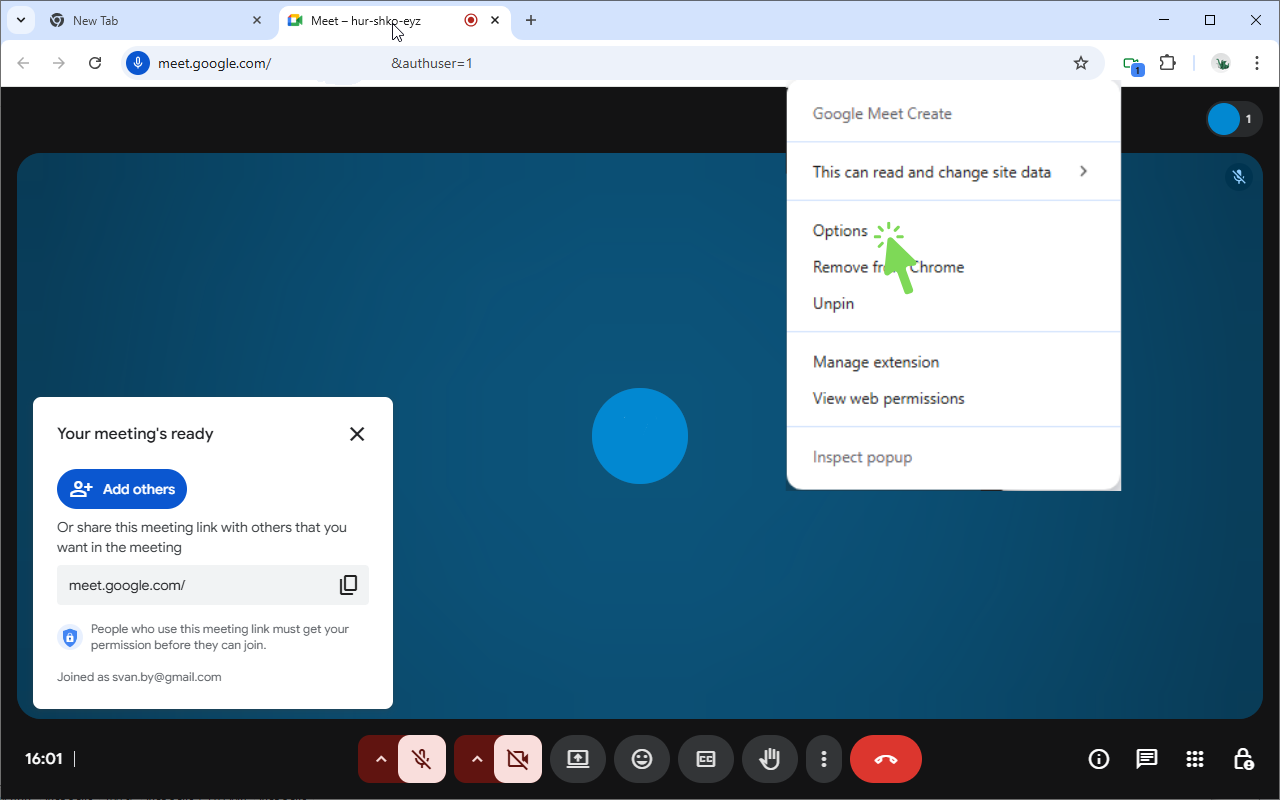
Open options page
Right-click the extension icon in your toolbar and select
Options from the context menu to open the settings page.
4
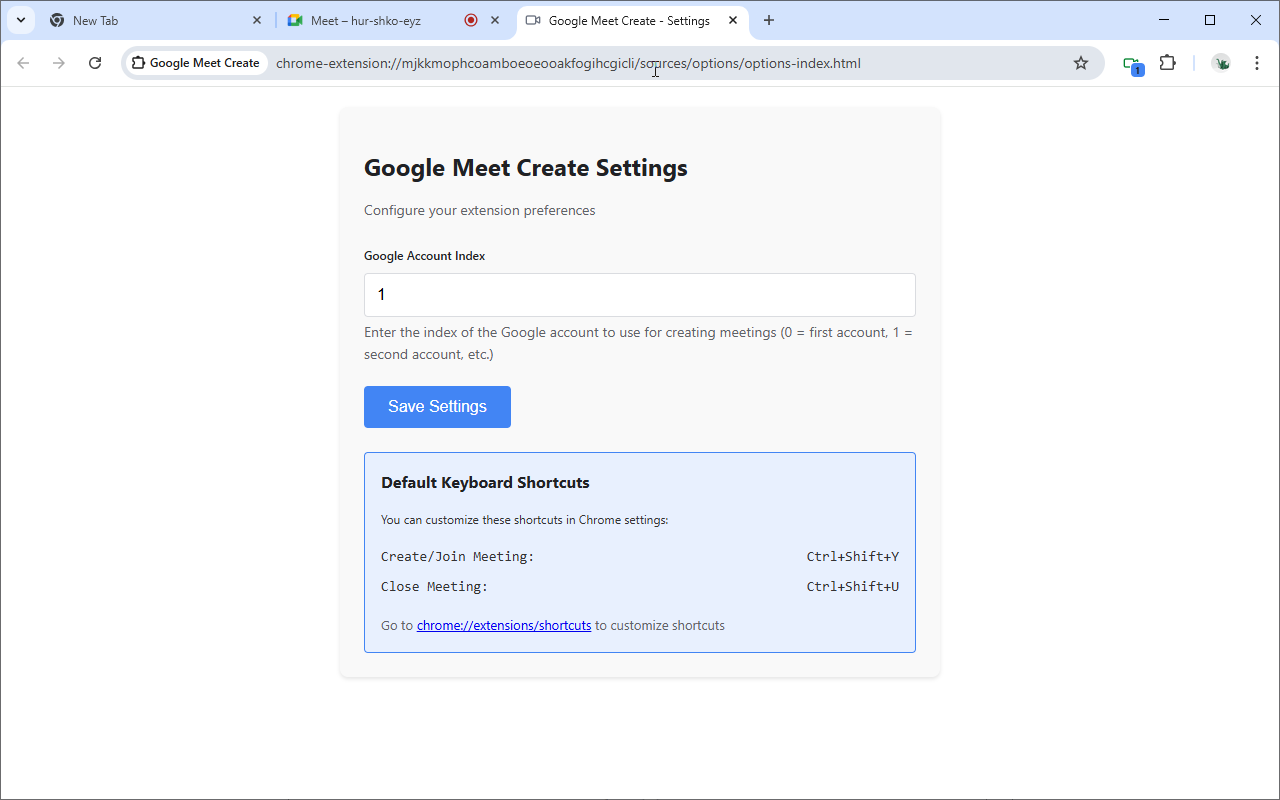
Configure Google account
On the options page, you can configure which Google account to use for meeting creation. Enter the account index (0 = first account, 1 = second account, etc.) and click "Save Settings" to apply your changes.
5
Master keyboard shortcuts
Ctrl+Shift+Y creates new meetings instantly, Ctrl+Shift+U closes active meetings. Use these shortcuts from any browser tab for maximum productivity.Customize shortcuts: Go to
chrome://extensions/shortcuts in your browser address bar to change keyboard shortcuts.